





Introduction
This article explains how to read QR codes on your computer with or without built-in camera.
Table of Contents
For Computers with Built-In Camera
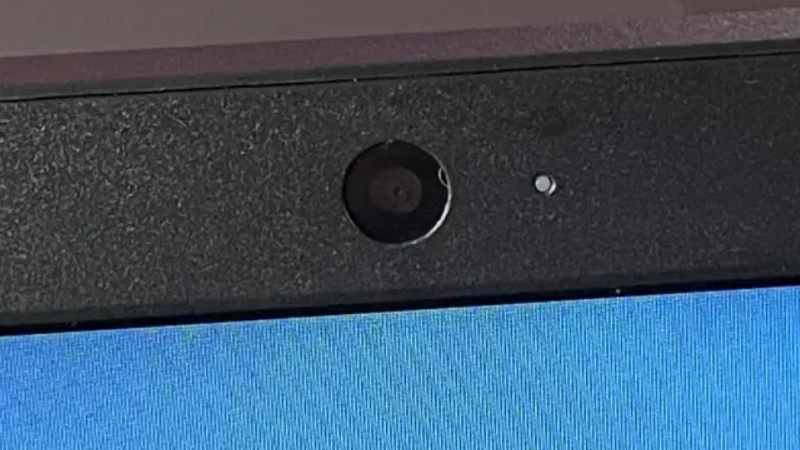
Chrome Browser
1. Download Chrome Extension
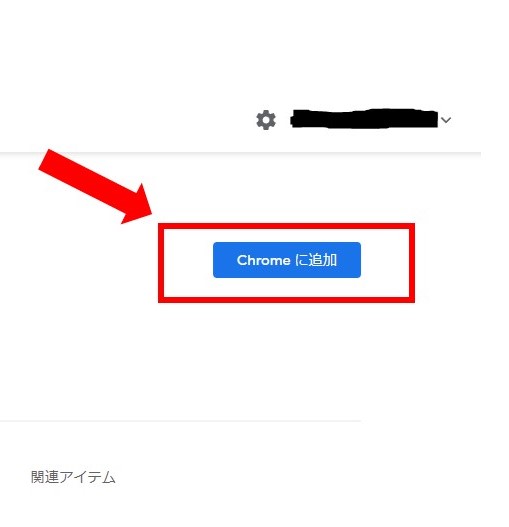
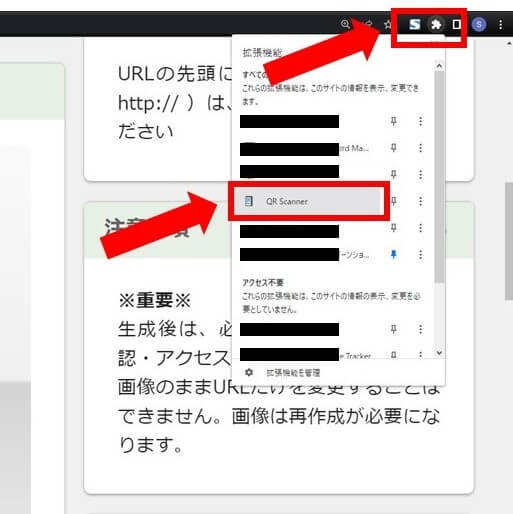
2. Enable Chrome Extension
3. Select the Camera icon to read the QR code through webcam
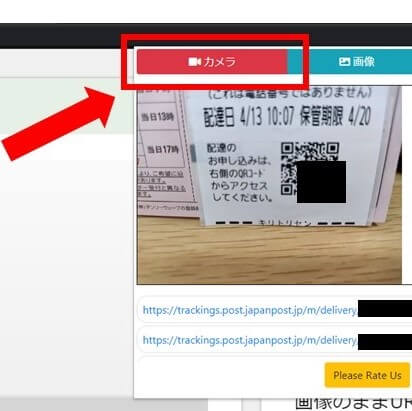
The URL will be displayed once the QR code is scanned.
Windows Standard App
1.Install “QR code for windows 10” from Microsoft Store
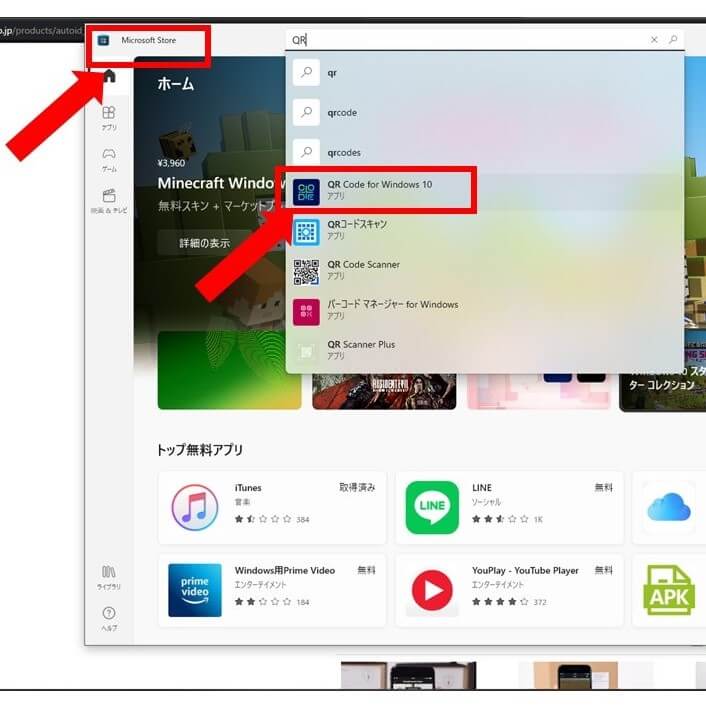
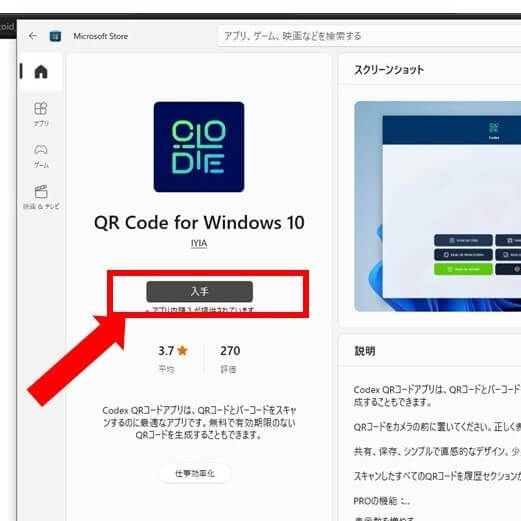
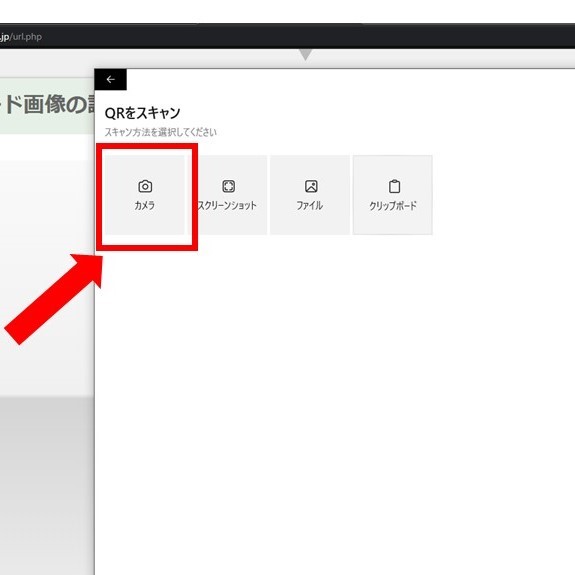
2. Activate the software and select the Camera icon
3. Read the QR code
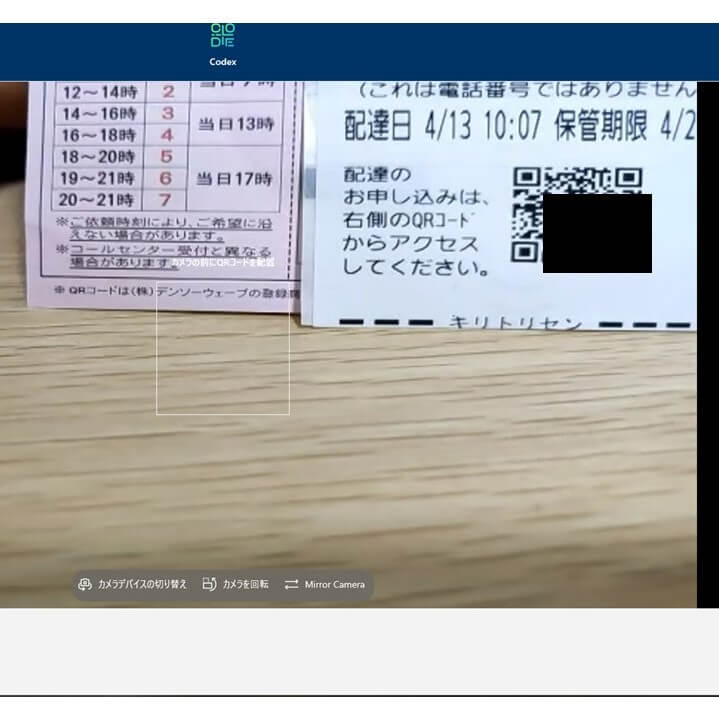
4. URL will be displayed
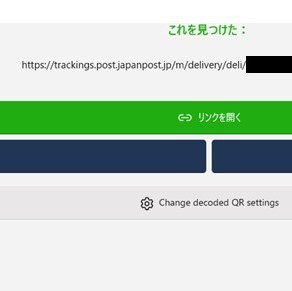
Free Software
1. Download
CodeTwo QR Code Desktop Reader & Generator
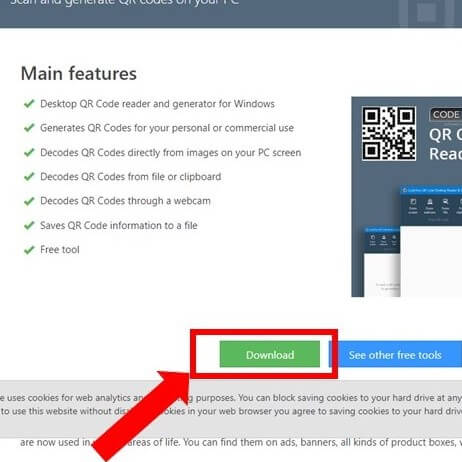
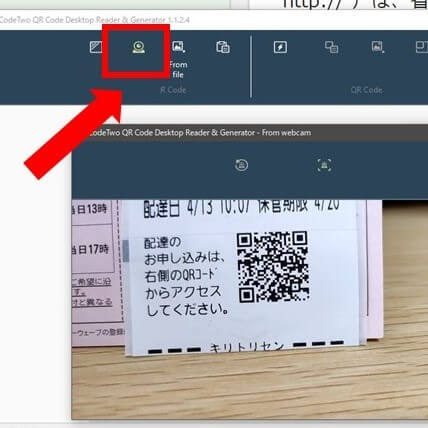
2. Activate the software and select the camera icon. Reading the QR code will display its URL.
For Computers without Built-In Camera
Chrome Browser
1. Download the Chrome Extension Below(Same step as the one in built-in camera)
2. Click to activate the Chrome extension
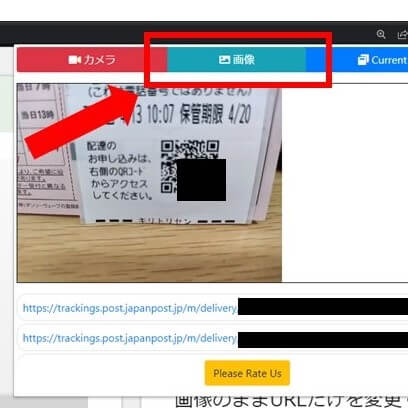
3. Select the file icon and choose the saved picture
Windows Standard App
1.Install “QR code for windows 10” from Microsoft Store.
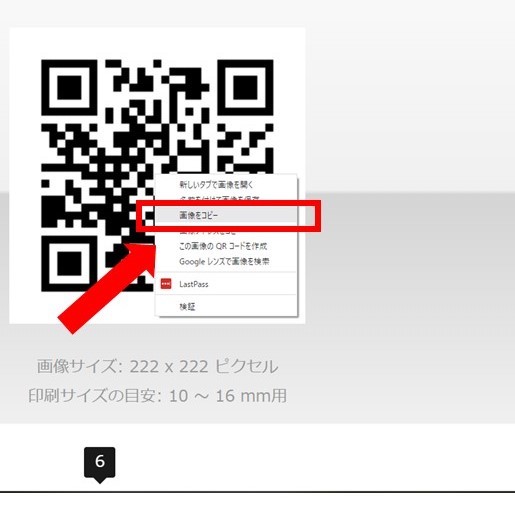
2. Right click the QR code and select copy
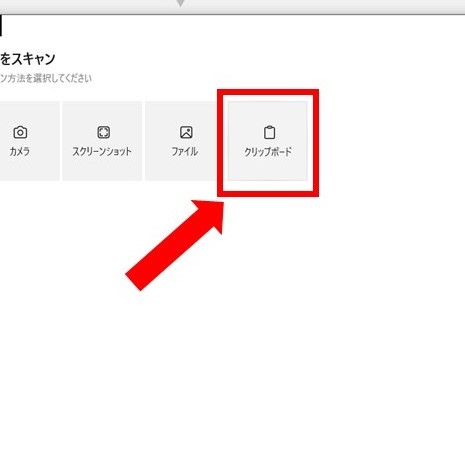
3. Select clip board icon
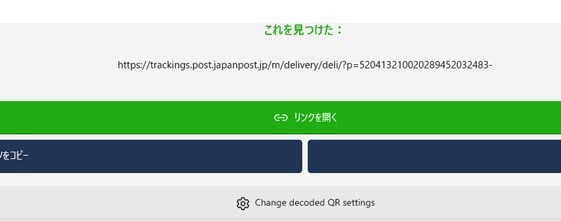
4. The URL will be displayed
・Reading QR codes on magazines and other paper medias
1. Take a picture of the QR code and save it on the computer’s file.
2. Select the file icon and select the file of the QR code you want to access.
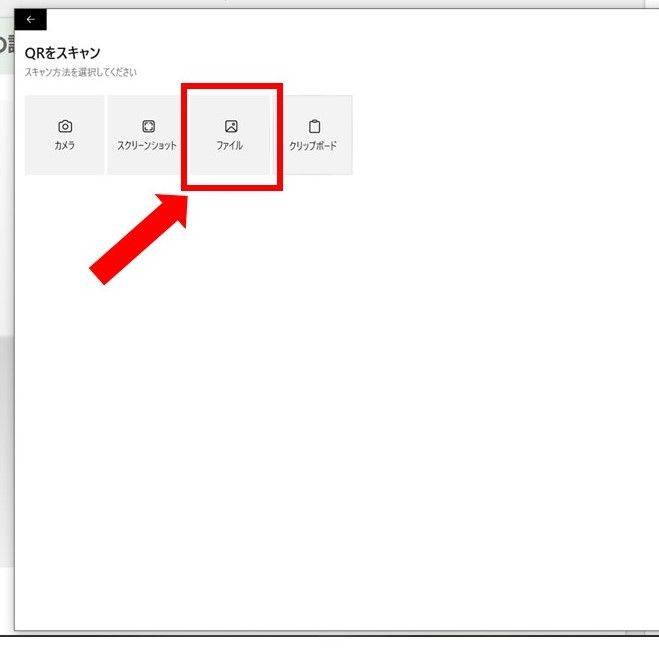
3. The URL will be displayed.
Free Software
1. Download
CodeTwo QR Code Desktop Reader & Generator
2. Activate the software and select the capture icon on the very left
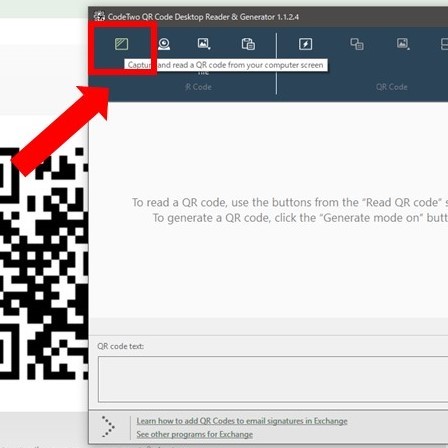
3. Select the range of the QR code
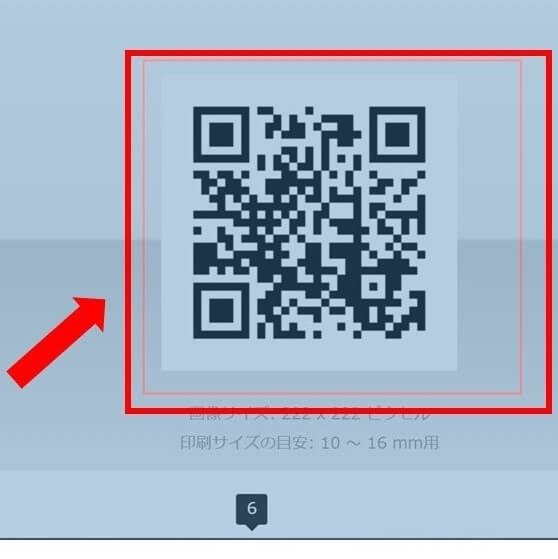
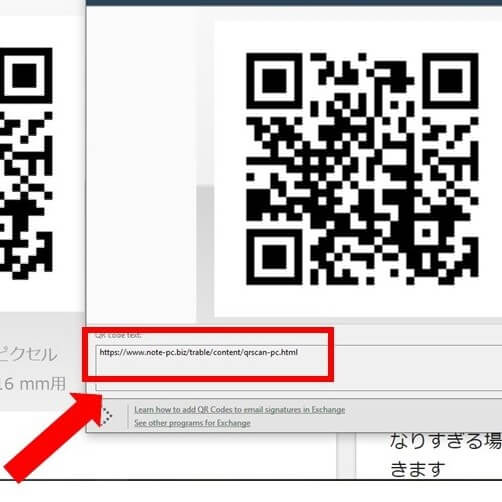
4. The URL will be displayed
Connect a USB webcam
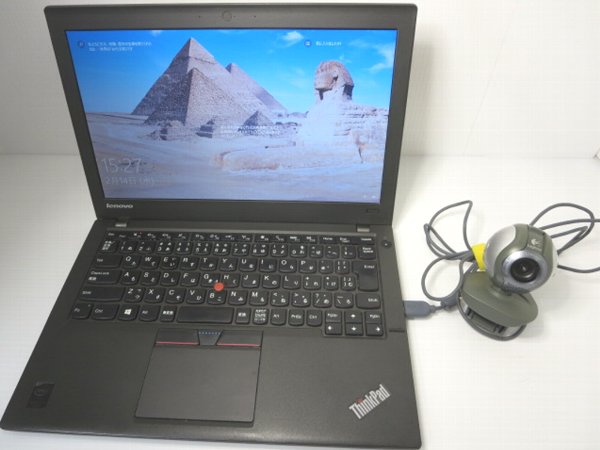
1. Connect an external USB camera
2. The driver will be installed automatically
3. Open the Start Menu from the Windows Button and Select the Camera App
4. Scan a QR Code by Pointing Your Camera
5. You will be able toread QR codes with the webcam.
Web Service
On this website, you can read QR code by uploading files.
1. http://qrcode.red/
2. Select the file of the QR code you want to access.
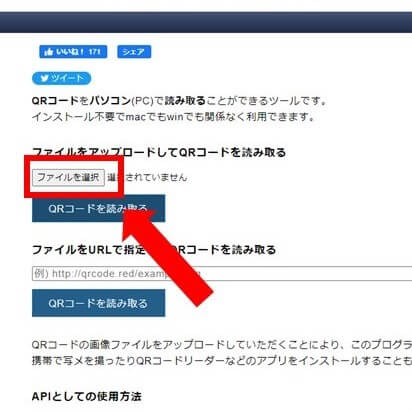
3. Select the file of the QR code you want to access.
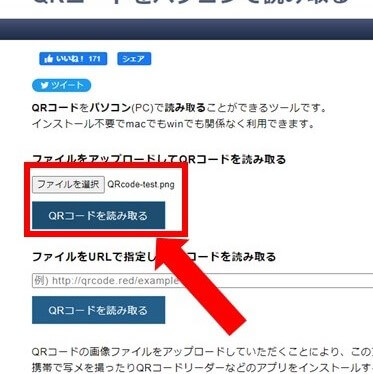
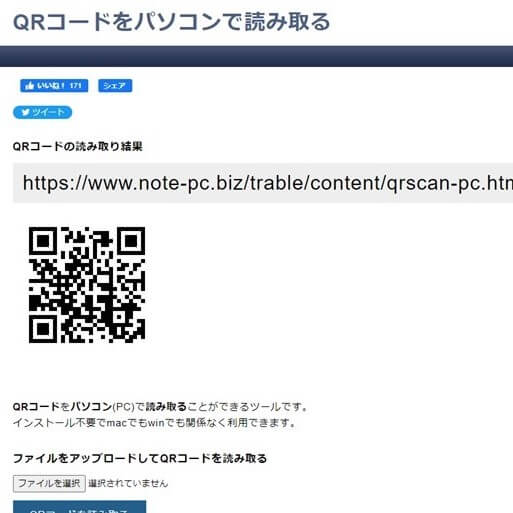
4. The URL will be displayed.


 持込
持込 見積
見積 WEB予約
WEB予約